Purpose: Manually Installing Oracle TEXT in Oracle 12c [Container] Database
Environment:
Database Software: Oracle 12c Release 2, currently it has a $ROOT CDB and $SEED PDB.
Operating System: Windows Server 2012 R2 Standard - 64 Bit
Oracle TEXT comes as an out-of-the-box component when you install and create Oracle 12c database using OUI / DBCA tools, but sometimes if you install and create the database manually like I did, you may have to manually install Oracle TEXT like explained here.
Step # 1: Checking the components present and the database size prior to install:-
SQL> select comp_id, control, schema, version, status, comp_name from dba_registry order by 1;

SQL> SELECT TABLESPACE_NAME,BYTES/1024/1024 "BYTES_MB",MAXBYTES/1024/1024 "MAX_BYTES_MB" FROM DBA_DATA_FILES order by TABLESPACE_NAME;

SQL> alter session set container = PDB$SEED;
SQL> SELECT TABLESPACE_NAME,BYTES/1024/1024 "BYTES_MB",MAXBYTES/1024/1024 "MAX_BYTES_MB" FROM DBA_DATA_FILES order by TABLESPACE_NAME;

Step # 2: Open a windows command prompt, set the environment variables (Make sure Oracle Home and Perl path is present).
> set ORACLE_SID=BABCDB
> set ORACLE_HOME=C:\Oracle12cR2_64Bit_DB\product
> set Path=C:\Oracle12cR2_64Bit_DB\product\bin;C:\Oracle12cR2_64Bit_DB\product\perl\bin;C:\Program Files (x86)\Common Files\Oracle\Java\javapath; C:\WINDOWS\system32;C:\WINDOWS;C:\WINDOWS\System32\...
> cd C:\Oracle12cR2_64Bit_DB\product\rdbms\admin
Step # 3: My environment has a $ROOT CDB and $SEED PDB, I will be connecting to the $ROOT to install it.
perl catcon.pl -p 2 -u SYS/xxxxxxxxxx -l C:\temp\spatial -b catctx_install_babu -a 1 F:\Oracle12cR2_64Bit_DB\product\ctx\admin\catctx.sql 1babu 1SYSAUX 1TEMPTBS1 1NOLOCK;
catcon: ALL catcon-related output will be written to [C:\temp\spatial/catctx_install_babu_catcon_4620.lst]
catcon: See [C:\temp\spatial/catctx_install_babu*.log] files for output generated by scripts
catcon: See [C:\temp\spatial/catctx_install_babu_*.lst] files for spool files, if any
catcon.pl: completed successfully
Step # 4: Verify the components:-
sqlplus SYS/xxxxxxxx@DEVCDB AS SYSDBA
SQL> SELECT TABLESPACE_NAME,BYTES/1024/1024 "BYTES_MB",MAXBYTES/1024/1024 "MAX_BYTES_MB" FROM DBA_DATA_FILES order by TABLESPACE_NAME;
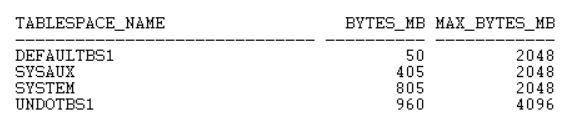
SQL> select comp_id, control, schema, version, status, comp_name from dba_registry order by 1;

SQL> ALTER SESSION SET CONTAINER=PDB$SEED;
SQL> SELECT TABLESPACE_NAME,BYTES/1024/1024 "BYTES_MB",MAXBYTES/1024/1024 "MAX_BYTES_MB" FROM DBA_DATA_FILES order by TABLESPACE_NAME;

Step # 5: Configure Language-specific default preferences (mine is U.S. English), connect as CTXSYS user and run below script:-
connect CTXSYS/xxxxx@devcdb
@F:\Oracle12cR2_64Bit_DB\product\ctx\admin\defaults\drdefus.sql
After successful install, lock the CTXSYS account and expire its password.
conn SYS/xxxxxxxxxx@DEVCDB AS SYSDBA
Check for invalid objects in the database. If present, run utlrp.sql or recompile invalid objects.
col OBJECT_NAME for a30
col OBJECT_TYPE for a30
col OWNER for a20
SQL> select owner,object_name,object_type from dba_objects where status <> 'VALID' order by 1,2,3;
no rows selected


